React Suspense panel
The Suspense panel in React Developer Tools lets you inspect <Suspense> boundaries, find what caused them to suspend, and preview the order in which they reveal their content.
Usage
To open the Suspense panel:
- Install React Developer Tools for Chrome.
- Open a page that uses a development build of React 19.3 Canary.
- Open the browser developer tools and select Suspense ⚛.
If the panel does not appear, reload the page with the browser developer tools open.
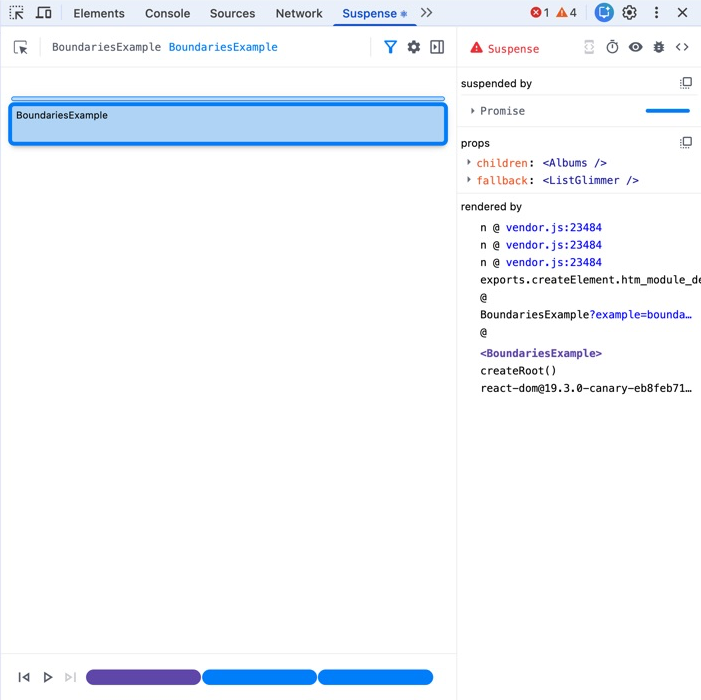
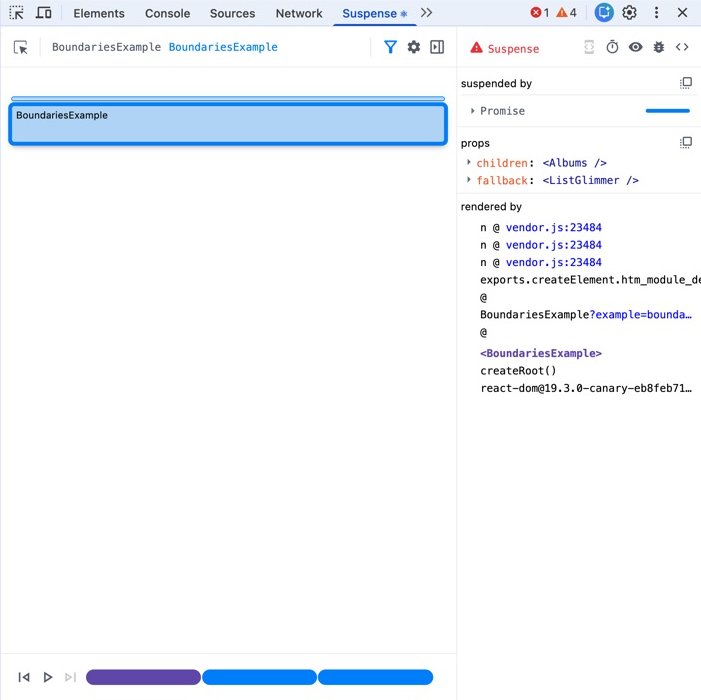
The examples on this page run inside embedded frames. The screenshots show how each example appears in the Suspense panel. To inspect an example interactively, fork it and open its preview as a separate page.
Panel features
Inspecting Suspense boundaries
The main view is a scaled map of the Suspense boundaries on the page. Each outlined region represents the content inside a boundary.
This example contains an outer boundary for the artist details and a nested boundary for the albums:
import { Suspense, use } from 'react';
import { fetchData } from './data.js';

export default function App() {
  return (
    <main>
      <h1>The Beatles</h1>
      <Suspense fallback={<h2>Loading artist...</h2>}>
        <Biography />
        <Suspense fallback={<AlbumsGlimmer />}>
          <Albums />
        </Suspense>
      </Suspense>
    </main>
  );
}

function Biography() {
  const biography = use(fetchData('/biography'));
  return <p className="bio">{biography}</p>;
}

function Albums() {
  const albums = use(fetchData('/albums'));
  return (
    <section className="panel">
      <h2>Albums</h2>
      <ul>
        {albums.map(album => (
          <li key={album.id}>{album.title}</li>
        ))}
      </ul>
    </section>
  );
}

function AlbumsGlimmer() {
  return (
    <div className="glimmer-panel">
      <div className="glimmer-line" />
      <div className="glimmer-line" />
      <div className="glimmer-line" />
    </div>
  );
}
Hover over a region in the map to highlight its content on the page. Select a region to inspect that boundary. For nested boundaries, use the breadcrumbs above the map to move through their hierarchy.
You can also select the inspect button in the panel, and then select content on the page.
Finding what caused a boundary to suspend
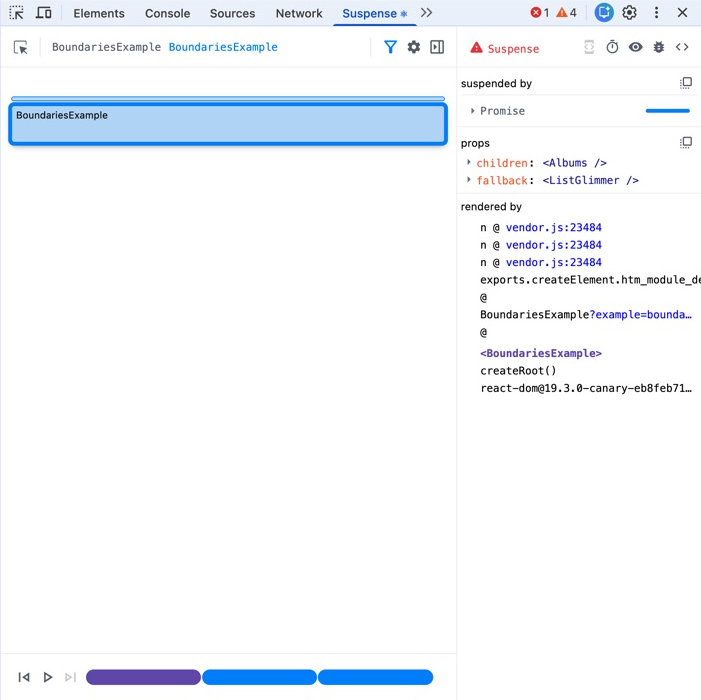
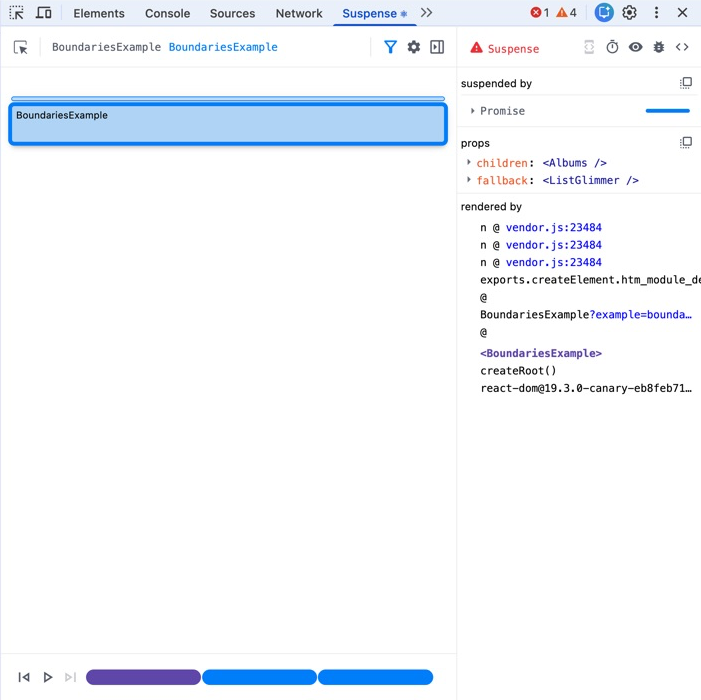
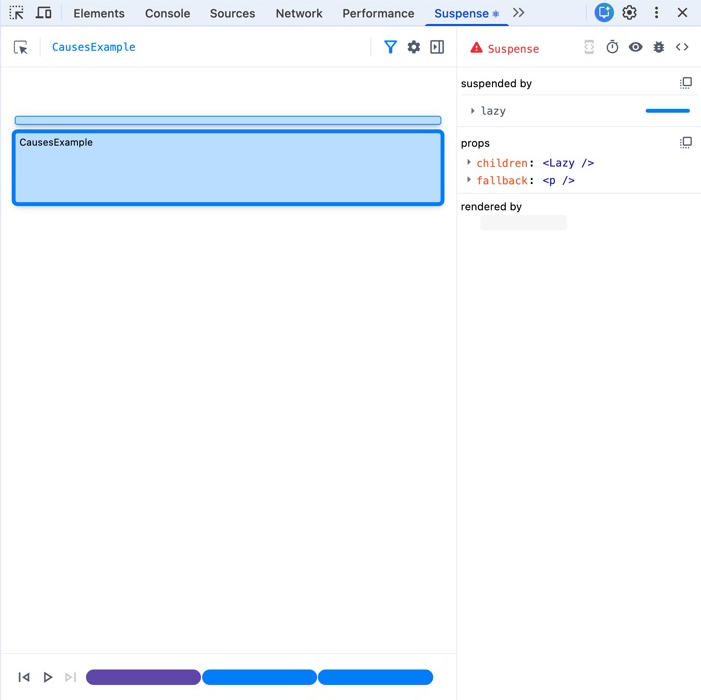
After you select a boundary, the inspector shows whether it is suspended and which Components rendered it. The Suspended by section shows the work that caused it to suspend.
In this example, one boundary waits for a Promise read with use, while another waits for a Component loaded with lazy:
import { lazy, Suspense, use } from 'react';
import { fetchBiography } from './data.js';

const Albums = lazy(async () => {
  await new Promise(resolve => {
    setTimeout(resolve, 1800);
  });
  return import('./Albums.js');
});

export default function App() {
  return (
    <main>
      <h1>The Beatles</h1>
      <Suspense fallback={<p>Loading biography...</p>}>
        <Biography />
      </Suspense>
      <Suspense fallback={<p>Loading albums...</p>}>
        <Albums />
      </Suspense>
    </main>
  );
}

function Biography() {
  const biography = use(fetchBiography());
  return <p>{biography}</p>;
}
Development builds can show causes such as lazy, Promises read with use, and resources including stylesheets, fonts, and images. Expand a cause to inspect the available details and timing.
Previewing a fallback
After this profile finishes loading, select its boundary in the panel. Use the suspend control in the inspector to replace the profile with its fallback. Use the control again to reveal the content.
import { Suspense, use } from 'react';
import { getProfile } from './data.js';

export default function App() {
  return (
    <Suspense fallback={<ProfileGlimmer />}>
      <Profile />
    </Suspense>
  );
}

function Profile() {
  const profile = use(getProfile());
  return (
    <section className="profile">
      <img src={profile.avatar} alt="" />
      <div>
        <h2>{profile.name}</h2>
        <p>{profile.bio}</p>
      </div>
    </section>
  );
}

function ProfileGlimmer() {
  return (
    <section className="profile glimmer">
      <div className="avatar" />
      <div>
        <div className="line title" />
        <div className="line" />
        <div className="line short" />
      </div>
    </section>
  );
}
The suspend control is not available while the boundary is already suspended. Forcing a boundary to suspend lets you check its loading state without changing the app’s data or adding temporary code.


Replaying the reveal sequence
The timeline starts with the initial paint and adds a step when a Suspense boundary reveals its content. This example reveals the biography first, followed by the albums and related artists:
import { Suspense, use } from 'react';
import { fetchData } from './data.js';

export default function App() {
  return (
    <main>
      <h1>The Beatles</h1>
      <Suspense fallback={<p>Loading biography...</p>}>
        <Biography />
      </Suspense>
      <Suspense fallback={<ListGlimmer />}>
        <Albums />
      </Suspense>
      <Suspense fallback={<ListGlimmer />}>
        <RelatedArtists />
      </Suspense>
    </main>
  );
}

function Biography() {
  const biography = use(fetchData('/biography'));
  return <p className="bio">{biography}</p>;
}

function Albums() {
  const albums = use(fetchData('/albums'));
  return <ItemList title="Albums" items={albums} />;
}

function RelatedArtists() {
  const artists = use(fetchData('/related-artists'));
  return <ItemList title="Related artists" items={artists} />;
}

function ItemList({ title, items }) {
  return (
    <section className="panel">
      <h2>{title}</h2>
      <ul>
        {items.map(item => <li key={item}>{item}</li>)}
      </ul>
    </section>
  );
}

function ListGlimmer() {
  return (
    <div className="glimmer-panel">
      <div className="glimmer-line" />
      <div className="glimmer-line" />
    </div>
  );
}
Use the previous and next buttons or drag the timeline to move between steps. Select play to advance through the steps automatically. The panel updates the inspected page to show the fallbacks and content that were visible at each step.
The timeline previews the reveal sequence. It is not a performance recording and does not represent how long each boundary took to load.


Showing all boundaries
By default, the panel hides boundaries that do not suspend independently. This includes a boundary that never suspends and one that always reveals with its parent boundary.
The boundary around the heading in this example never suspends. Turn off the boundary filter to include it in the map:
import { Suspense, use } from 'react';
import { getAlbums } from './data.js';

export default function App() {
  return (
    <main>
      <Suspense fallback={<h1>Loading title...</h1>}>
        <h1>The Beatles</h1>
      </Suspense>
      <Suspense fallback={<p>Loading albums...</p>}>
        <Albums />
      </Suspense>
    </main>
  );
}

function Albums() {
  const albums = use(getAlbums());
  return (
    <ul>
      {albums.map(album => <li key={album}>{album}</li>)}
    </ul>
  );
}


Troubleshooting
I don’t see the Suspense panel
Check that you are using the React Developer Tools extension for Chrome and that the inspected page uses a development build of React 19.3 Canary. Reload the page after opening the browser developer tools so the extension can detect React.
Chrome keeps a custom developer tools panel after an extension creates it. This means the Suspense panel can remain visible if you navigate from a compatible app to a page that uses another version of React. Close and reopen the browser developer tools to check whether the current page supports the panel.
The panel does not show any boundaries
The panel only shows boundaries rendered with <Suspense>. If the panel says that the root contains no Suspense nodes, check that the inspected page has rendered a boundary.
If the page contains a boundary but it does not appear, turn off the boundary filter.